





If you've ever wanted to play the arcade version of THE iDOLM@STER, released in July 2005, this is the perfect time. That may sound funny after we just lost two more machines, and the small handful left are all on life support, buuut... It is now fully emulatable (!!!). As of about three months ago, some incredibly clever people have ironed out the last of the issues with it. In this guide, I'll show you how to set it up so you too can play Arcadem@s on your very own PC! (I'll be using Windows here, so if you're on any Linux distro or a Mac, this probably won't be of much help to you. Sorry!)
Once you're done, extract PCSX2x6-imas into a folder of your choice (ideally somewhere you can find it later, since this is how you'll be playing the game). It's a .7z, which you can open with 7zip if you don't already have that. When you've done that, open pcsx2-qt.exe. You'll get a little intro wizard to set up the emulator. It'll ask you for a bios, so direct it toward the one you downloaded before ("r27v1602f.8g" inside sys256.zip).
Next, open up your file explorer into your Documents folder. There should be a PCSX2x6 folder there, right? And inside that folder is a memcards folder. There will be two .ps2 files already, but we're going to cut and paste one of the game files from earlier in. More specifically, you want to move the "NM00022 IDMS1, Ver.D a026061343464a [Station].ps2" file there. That's the security dongle that will let you access the game!
Go to the folder where you downloaded the rest of the game files. You should see, at minimum, "NM00022 IDM1-HA (HDD).chd" and "proverb.elf". I recommend keeping these in their own separate folder, rather than letting them swim in all your other downloads. Remember the .acgame file? Put that in there too.
With the game files all set, there's one more thing we need to do. Open up the YACardEmu zip you downloaded, and extract that into its own folder as well. Double click the .exe. It'll open a little command window showing that the program is running. Make sure to open that every time you want to play, before you launch the game!
Going back to PCSX2x6, right click the game list (or go to Settings > Add Game Directory) and open up the folder where you put the .acgame, .chd, and .elf files and confirm. Once it refreshes, it'll list NM00022 The iDOLM@STER.
At this point, if you double click it, it'll open up and run the game. But you'll get stuck at the coin prompt, so... Instead, go to Settings > Controllers in the emulator window, and then the JVS Controls tab. Each of these lets you set a key for it (or a button if you want to use a controller for some reason). At minimum, setting a key for Service will let you virtually add "coins" whenever needed (press it as many times as you need coins). I recommend setting a button for Test Mode, Enter, Start, and the directions as well, especially if you'd like to set up Free Play mode (more on that after).
Close the control options to return to the main emulator window. Make sure that YACardEmu is still running, and open your web browser (any will work) and paste this into the address bar: http://localhost:8080. This webpage (run on your machine, so you're the only one who can ever see it) is going to let you read and write cards in Arcadem@s. You can't play without it!
Now we're finally ready to open the game proper. Double click it in the list in PCSX2x6. The window will be solid black for a little bit, but assuming you've done everything right, you'll soon get a warning message about unauthorized use and a loading bar. If so, great job, you're almost there!! It'll attempt to connect to the server next, but those no longer exist (and aren't set to begin with), so this will fail after a short wait and fade out. Then you'll get the Namco logo and some others, and the game will launch.
From this point, you can play! Use your mouse to click anywhere in the game window, emulating the real deal's touch screen. Press the big button at the top after the splash screen to start a new save, and mash the coin button you set earlier 6 times. This will sync with YACardEmu to create new cards for you, which you'll get after your tutorial session is over.
So, remember how I mentioned Free Play mode? This step is optional but pretty convenient, especially if you're going to do long sessions. You'll need to set Test Mode and other extra keys in controls for this, so make sure you've done that first. The game also needs to be fully launched, so, past all the logos and at the splash screen.
Press the key you set for Test Mode, only once. It'll switch to a black screen with several options in white text. You'll navigate these using whatever directional and enter keys you set. Go into the coin options, and at the bottom, there will be a toggle for Free Play mode. By default it's set to Off, but if you select it you can switch it to On. Back out and press the Test Mode switch one more time. The regular game will reappear, but the Credits text on the bottom should have changed to Free Play. Now you can play for a long time with way more convenience!
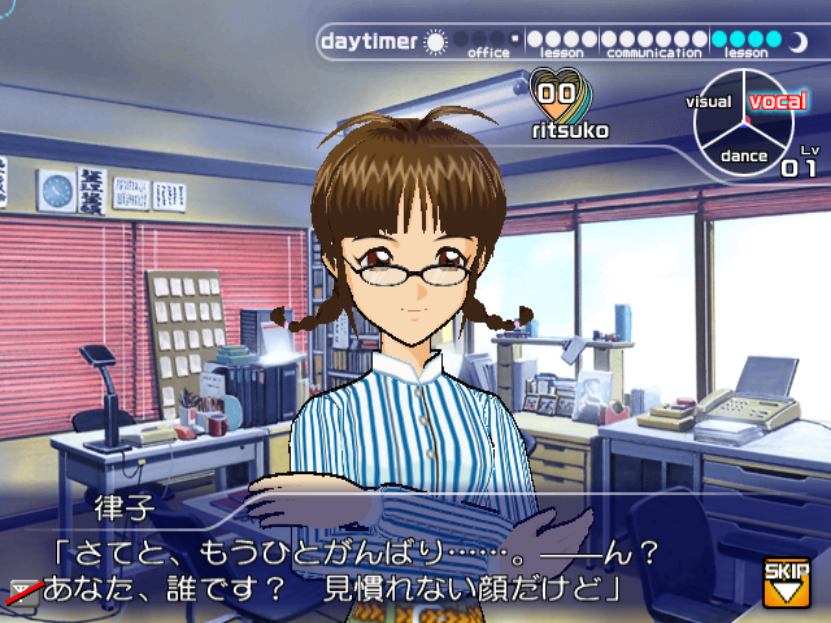
There's one main drawback to playing emulated, as someone who's played the real deal at HEY in Akiba (my favorite place on earth): it's too fast. I think it's the frame rate running at 60 constantly, but it makes certain parts that rely on timing (like voice lessons or Just Appeals) anywhere from tricky to nigh impossible. If I figure out an overall solution to this I'll share it, but I can't find any setting to limit FPS that doesn't also make the game itself slow down. You can do other lessons instead, typically, and Just Appeals are still doable even with tighter timing. I might try using the shortcut key to slow the game down and back up on command and see if that makes those lessons more playable. It's not the end of the world, regardless.
Yep. If that's a dealbreaker for you, you may want to sit this out for now. I don't know if a translation project will ever emerge, but if it does, I'll update this to share it.
Enable file extensions in the file explorer you're using (likely the default Windows one).
Make sure to start YACardEmu before opening the game.
Make sure you put the .ps2 file into the memcards folder properly, and that it was the Station version.
Make sure you downloaded the correct bios file. You want 256, not 246.
They hold your save data, basically. One is a Producer card that saves what you do across playthroughs (like costumes you unlock, or the ability to produce duos and trios). The other one is a Unit card that's specific to your current playthrough, and will be retired once your girl(s) have their final concert. Both of these get updated at the end of every play session. On the YACardEmu webpage, there's a button to "insert" these when the game prompts you to. The cards themselves are stored as .png files, and you can find those in the "cards" subfolder of YACardEmu. If you'd like to set a custom background (to imitate the real card designs, for example), you can put the base in the "images" subfolder and it'll print the card data on those instead. I plan on making some for myself, so I'll share those here sometime.
Arcadem@s had multiplayer until the servers were shut down in 2010. This let you challenge other players and their hard-earned units in auditions! This is also what the Tower was for, which was a separate cabinet that would connect all the Station cabinets to the larger server, and display what units were trending and such. It was actually pretty big back then, and many people suffered bitter defeats in PVP. The Station functions fine offline, but in Test Mode it does have network settings where you can set an IPv4 address to connect to. So maybe in the far future, we could have private servers to compete on? It's a nice thought. I'm certainly not the person to do it though.
That is an entirely different topic, and one I plan to do a guide about later on. In the meantime, you can try this guide a wonderful person wrote for the 360 game. Most of it is still applicable, since the 360 version is just an updated version of the same core gameplay. Of note is that 1.) some of the requirements for rank-ups may be different, 2.) the 360 version did not have deadlines for rank-ups like the arcade version does, 3.) you can only choose a maximum of three songs and not five, 4.) the lesson minigames play differently because of the touchscreen controls, 5.) lessons in arcade are always paired with a commu schedule-wise, and 6.) the character Miki Hoshii does not exist. It should still be a big help.